
Add document
You can add documents to Raiser's Edge records using various file capture options such as scanning the documents by using a TWAIN compliant scanner or Fujitsu fi-NX series scanner, uploading files from your file explorer or generate a barcode to scan the documents in a batch at a later time.
Follow the below steps to add a new document to an Raiser's Edge:
1) In Raiser's Edge, Click on PaperSave - Add documents to add document from Record and click on the Add Another Document button to add from the batch section which appears if there is any PaperSave document associated with the record as shown in the below screens.


Note: You can also click on Yes, when a add document dialog box appears after saving the record from Records and Batch section, as shown below.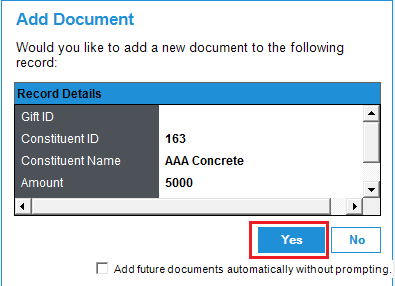
2) Now, it will open Add a new PaperSave Document window of PaperSave application in the default browser as shown below:

The following are the topics related to adding a new document to an Raiser's Edge record:
- Scan/Upload documents using any of the supported Acquisition methods
- Validate the document in an item viewer
- Submit the document to the Raiser's Edge records
In addition to adding documents directly from Raiser's Edge, you can also add documents using any of the below options:
-
By using Side by Side Entry
- Using Auto Entry Workflow from Workflow Area
-
From Acquire Area
-
From Browse Area
-
From Search Area